VoiceText
VoiceText is a simple way to turn your voice into text. Dictate or type, format what you write, and download it — right in your browser, no account needed.
VoiceText uses your browser's built-in Google voice recognition to turn your speech into text.
The built in voice to text feature of VoiceText will not work on iPhone and iPad.
See it in action
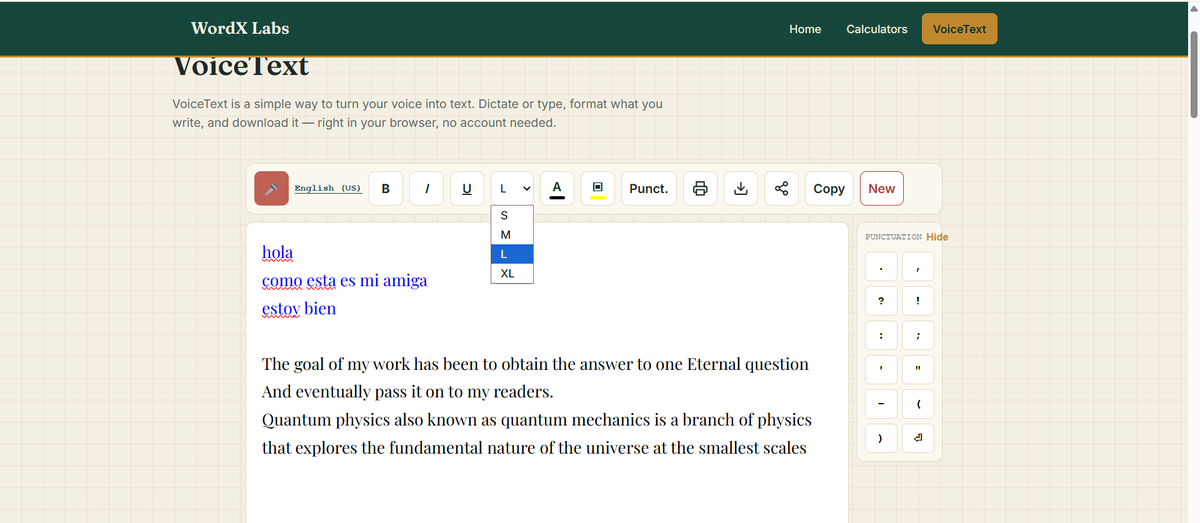
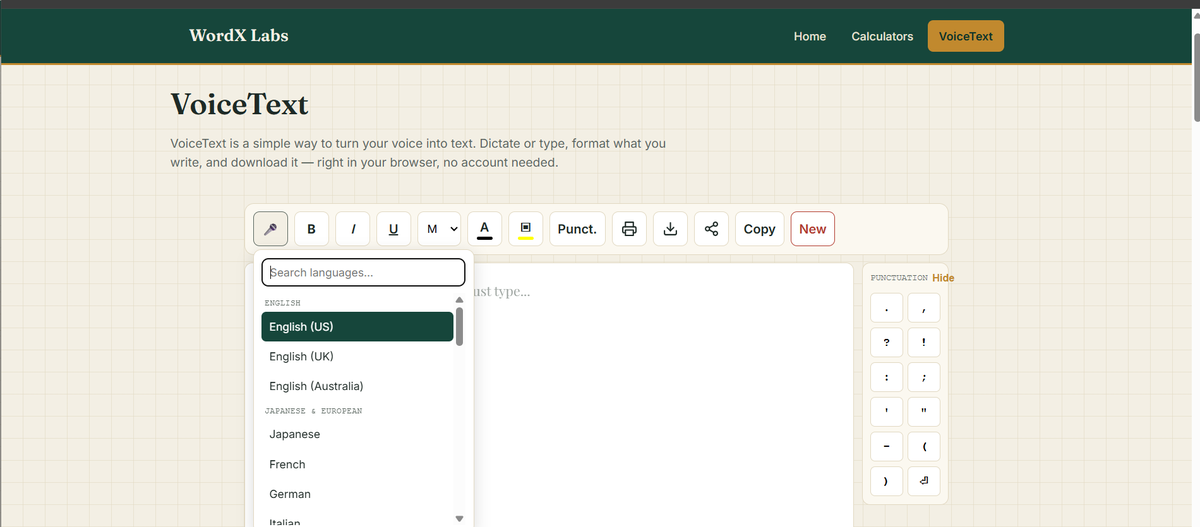
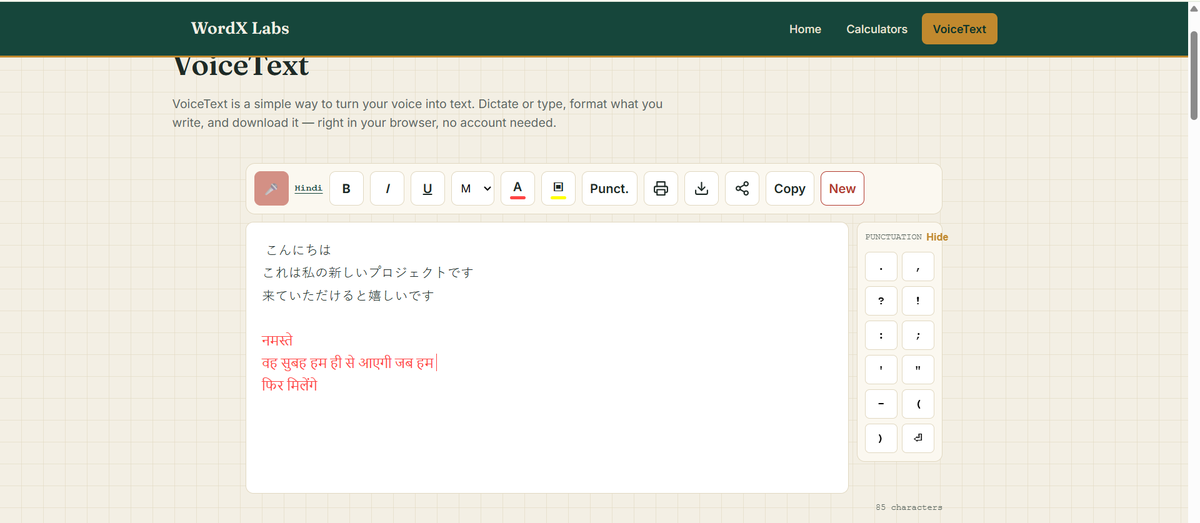
VoiceText
VoiceText is a free, browser-based speech-to-text and voice typing tool — no download, no sign-up, and no software to install. It works as voice-to-text on both Chrome (desktop) and Android, so you can dictate on your computer or your phone. Just tap the mic, select your language, and start talking; your words appear as text in real time. It supports 69 languages and regional variants, including multiple English accents (US, UK, India, Australia), Japanese, Chinese, Spanish, Hindi, Tamil, Bengali, Nepali, major European languages, and more. Pick your color, and every word you dictate is typed in that chosen color as you speak. You can switch languages mid-dictation without losing your place. VoiceText also works as a full text editor — type directly, format your text with bold, italic, and underline, and download or share your finished document when you're done. Everything runs locally in your browser, with nothing saved to a server.
Questions and answers
Which languages are supported?
69 languages and regional variants, including multiple English variants (US, UK, India, Australia, and more), Japanese, Chinese, Spanish, and other major European languages, Portuguese, Middle Eastern and African languages including Arabic and Hebrew, and a wide range of South and Southeast Asian languages including Hindi, Tamil, Bengali, Nepali, and more. You can search for your language by name when you tap the mic.
Can I dictate directly in a color of my choice?
Yes. Pick a text color before or while you dictate, and everything you say is typed in that color — not just applied afterward.
How does it work on a computer?
Open VoiceText in Chrome, tap the mic button, search for and choose your language. Chrome will ask for permission to use your microphone — choose "Allow," and start talking. Your words appear in the document as you speak.
How does it work on a phone?
The same way — open VoiceText in Chrome on your Android phone, tap the mic, pick your language from the list. Chrome will ask for microphone permission — choose "Allow," and start talking.
What happens when I choose "New"?
If your current document hasn't been downloaded yet, VoiceText warns you first — starting a new document will permanently delete what you've written, since it isn't saved anywhere except your own device. You can download it first if you want to keep it, or continue and start fresh.
Do I need an account or to log in?
No account or log-in needed, and nothing is saved on our server.
Does this work on iPhone or iPad?
The built-in voice-to-text feature doesn't work there. Typing, formatting, and downloading are otherwise unaffected.
Which browser does VoiceText work in?
It works on all browsers, except the built-in voice-to-text feature, which will work only on Chrome, and not on iPhone or iPad.
Where does my voice actually go when I dictate?
Chrome sends your voice audio to Google's own speech-recognition servers to convert it into text, then sends the text back to your browser. Your audio is never sent to or stored on WordX Labs' servers.
Is my dictated text stored anywhere?
No. Everything stays in your browser. VoiceText autosaves at regular intervals purely to protect against losing work if your browser closes unexpectedly — that backup never leaves your device, and is cleared automatically the moment you download your document.
What happens if my browser closes or crashes while I'm working?
Reopening VoiceText will offer to recover your last autosaved backup.
Can I use my keyboard while dictating?
Yes. Typing and dictating both work at the same time — you can type in between or while the mic is on, without needing to stop dictation first.
Can I change the language partway through dictating?
Yes. Tap the language name shown while you're dictating to pick a different one — dictation continues without needing to stop and restart from scratch.
How do I stop dictating?
Tap the mic button again. It only stops when you choose to stop it.
Can I format my text — bold and italic?
Yes, along with underline and four text sizes.
Can I download my document?
Yes, as an HTML file that keeps all your formatting and colors exactly as written.
Can I print my document?
Yes, directly from the tool.
Can I share my document straight to WhatsApp or email?
Yes — tap Share, and your device's own sharing menu opens, letting you send it to WhatsApp, email, or any other app you have installed. If that feature isn't available on your device or browser, use the Copy button instead.
What happens if I paste something into VoiceText?
Only the plain text is kept — any formatting, links, or hidden content from wherever you copied it is automatically removed before it's added to your document.
Does VoiceText use AI?
VoiceText itself doesn't use AI to write, summarize, or generate anything. For the voice-to-text feature, it relies on Chrome/Google, whose policy and technology for speech recognition are their own — not something we build, operate, or have visibility into.
Why does the editor look narrow when I first start typing on mobile?
On some mobile devices, the text box can briefly appear narrower than expected right when you type the first character. It corrects itself once you've typed a full line.
Is VoiceText free to use?
Yes, like every tool on WordX Labs.
Does Find and Replace work in languages other than English?
Yes — Find and Replace works with any language you can type or dictate.
Type directly into the Find and Replace boxes if you can type your language.
Copy a word straight from your document and paste it into either box. If the word you need for Replace doesn't already exist anywhere in your document, dictate it into the editor first, copy it from there, paste it into the Replace box, then delete that scratch word from your document afterward. This works reliably because copy-paste carries the exact characters as written, with no risk of a fresh dictation mishearing the word differently the second time.
Dictate directly into the Find or Replace box using the same mic — whichever language is currently active for your dictation is what it listens for, so no separate language selection is needed for these boxes. Keep in mind this uses the same speech recognition as the editor, so a word that was misheard once could be misheard the same way again if dictated a second time here — copy-paste (the second way) avoids that risk entirely.
Why does Chrome sometimes ask for microphone permission more than once?
Chrome asks once, the first time you use the mic on this site. If it asks again, that's Chrome's own behavior around microphone sessions — not something VoiceText is intentionally triggering.